

Perplexity
Add Triangle as a custom remote MCP connector in Perplexity. Create a confidential OAuth app, authorize through your Triangle account, then ask Perplexity to use your approved health topics, notes, and records.
Official Perplexity documentationBefore you start
- A Triangle account with an active patient profile.
- A Perplexity Pro, Max, or Enterprise plan. Custom remote MCP connectors are not available on the Free plan.
- A confidential OAuth app created in the Triangle developer portal, with Perplexity’s OAuth callback registered.
Connection fields
| Field | Value |
|---|---|
| MCP server URL | https://app.trianglehealth.com/mcp |
| Authentication | OAuth |
| Redirect URI base | https://www.perplexity.ai/rest/connections/oauth_callback |
| Client ID | Copy from your confidential app in the Triangle developer portal |
| Client Secret | Copy the one-time secret when you create the confidential app |
| Scopes | Not configured in the connector — permissions are granted on Triangle’s OAuth consent screen when you authorize. |
Setup steps
01.Create OAuth credentials for Perplexity
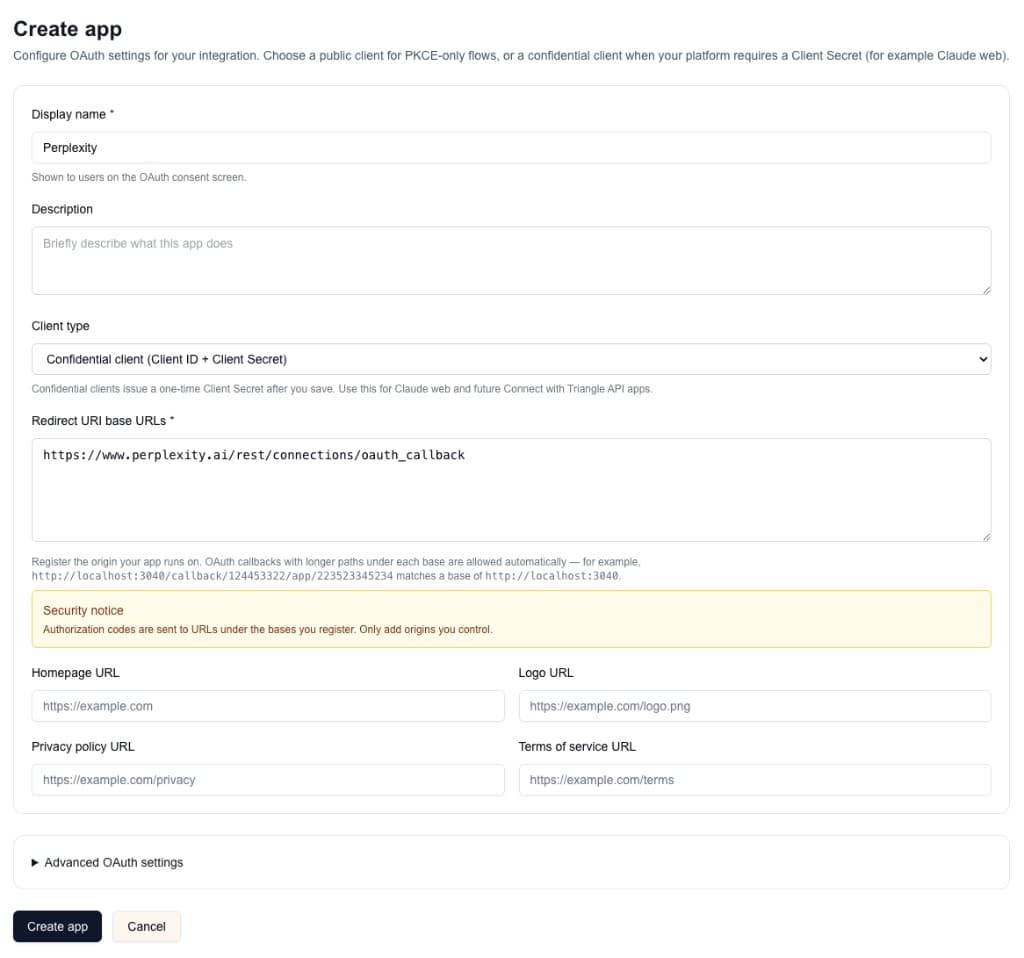
Perplexity’s custom connector form asks for a Client ID and Client Secret. Create a confidential OAuth app in the Triangle developer portal first.
- Open https://app.trianglehealth.com/developer/apps and click Create app.
- Set the display name to Perplexity (shown on the Triangle consent screen).
- Choose Confidential client (Client ID + Client Secret).
- Add https://www.perplexity.ai/rest/connections/oauth_callback as a redirect URI base.
- Save the app, then copy the Client ID and the one-time Client Secret. Store the secret securely because Triangle will not show it again.
02.Select + Add custom connector
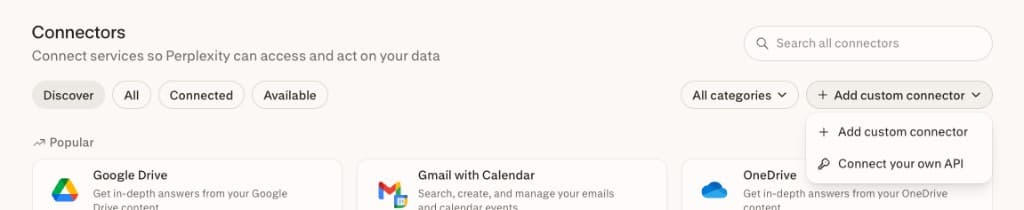
Custom MCP connectors live under Perplexity Connectors. Open the add menu and choose Add custom connector.
- Open Perplexity on the web at https://www.perplexity.ai/.
- Open your profile menu, then Account Settings (or All settings).
- Select Connectors.
- Click + Add custom connector, then choose + Add custom connector from the menu.
03.Provide MCP URL, Client ID, and Client Secret
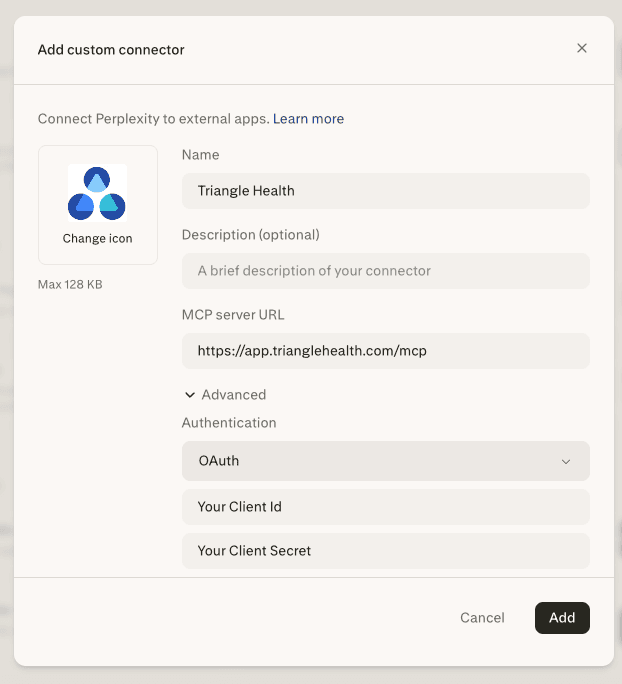
Point the connector at Triangle’s MCP URL and paste the OAuth credentials from your confidential Triangle app.
- Enter a name such as Triangle Health.
- Optionally add a short description and upload an icon.
- Set the MCP server URL to https://app.trianglehealth.com/mcp.
- Open Advanced and set Authentication to OAuth.
- Paste Your Client Id and Your Client Secret from the Triangle developer portal.
- Click Add.
04.Connect and complete the login consent flow
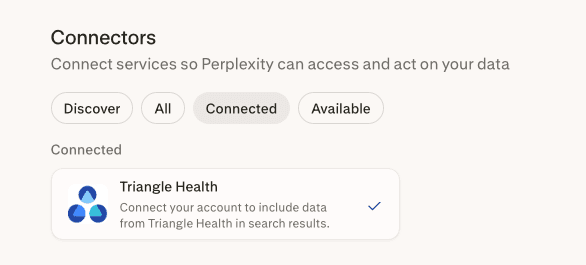
Authenticate the connector so Perplexity can call Triangle tools with your approved permissions. When finished, Triangle appears under Connected.
- Click Connect on the Triangle Health connector if Perplexity does not start OAuth automatically.
- Sign in to Triangle when prompted.
- Review permissions on the consent screen and click Accept.
- New users complete the short setup flow (name, agreements, patient profile) before consent.
- Return to Perplexity Connectors → Connected and confirm Triangle Health shows with a connected status.
- You can revoke access anytime from https://app.trianglehealth.com → Settings → AI Services.
05.Talk to Perplexity about your health
Enable the Triangle connector for the conversation, then ask Perplexity to review records, research conditions, or work with your notes.
- Start a new thread in Perplexity.
- Select or enable the Triangle Health connector for that thread if Perplexity requires per-conversation selection.
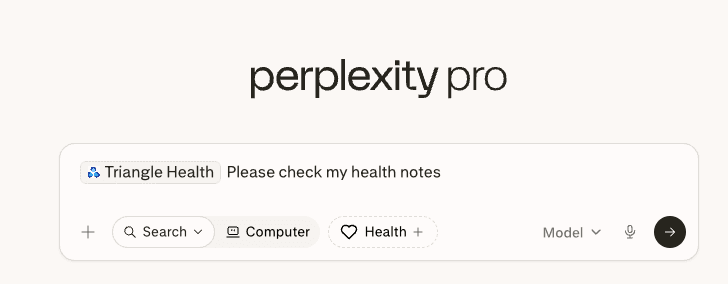
- Try prompts such as “Please check my health notes,” “Using Triangle, list my health topics,” or “Summarize my recent Triangle medical records.”
- Approve any connector prompts Perplexity shows before tool use.
- Manage or revoke the connection anytime from Settings → AI Services in the Triangle app.
What you can do after connecting
- Browse and organize health topics on your Triangle profile.
- Read and create notes attached to topics.
- Search notes across topics.
- List medical records and read summaries or extracted content (requires medical_records:read consent).
- Use data tools such as get_topics and get_topic_notes — ChatGPT-style inline widgets are not available in Perplexity.
- OAuth through a confidential developer portal app (Client ID and Client Secret) plus Perplexity’s custom connector flow.
- Manage connections anytime from Settings → AI Services in the Triangle app.