
All integrations
Grok
Add Triangle as a custom MCP connector in Grok settings. Grok discovers Triangle tools over OAuth so you can ask about your health topics, notes, and records in chat.
Official Grok documentationBefore you start
- A Triangle account with an active patient profile.
- Grok on the web at grok.com/connectors (or Grok mobile → Settings → Connectors).
- A paid Grok subscription — custom MCP connectors require a paid plan.
- No Triangle developer portal app is needed for the Grok connector — Grok registers with Triangle automatically via OAuth.
Connection fields
| Field | Value |
|---|---|
| MCP server URL | https://app.trianglehealth.com/mcp |
| Authentication | OAuth |
| Client ID | Not required — Grok handles OAuth registration automatically |
| Scopes | Not configured in the connector — permissions are granted on Triangle’s OAuth consent screen when you authorize. |
Setup steps
01.Add Triangle in Grok
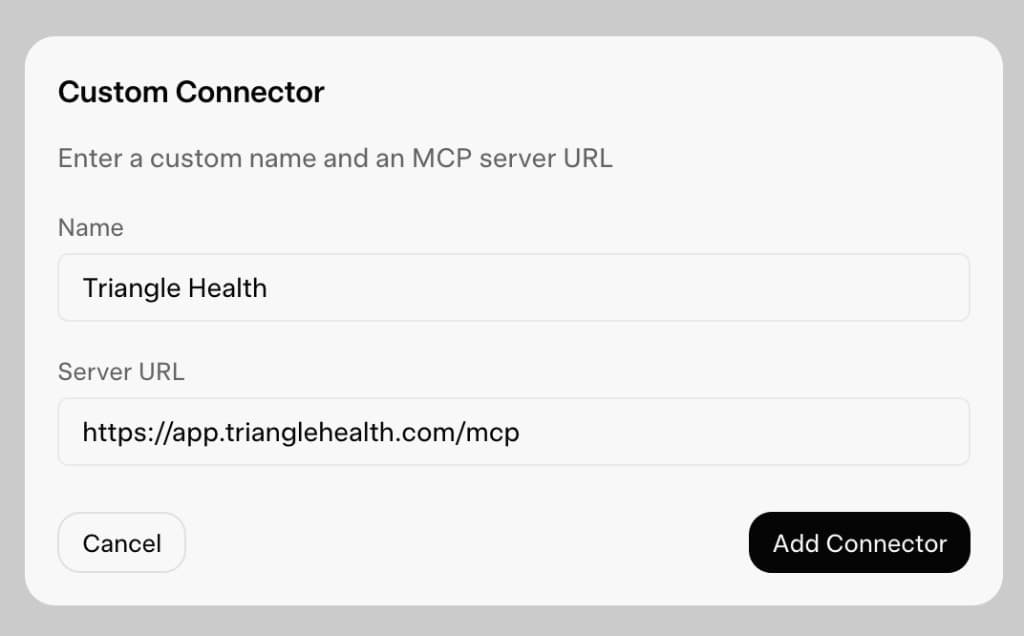
Register Triangle as a custom MCP connector in Grok. You only need a name and the MCP server URL — Grok registers the connector and may show it as connected before OAuth is complete.
- Open Grok and select Skills and Connectors in the left navigation, or go directly to https://grok.com/skills-and-connectors.
- Select Connectors.
- Click New Connector, then choose Custom.
- Enter a name (for example, Triangle Health) and the MCP server URL: https://app.trianglehealth.com/mcp
- Click Add Connector.
- Grok should prompt you to sign in to Triangle and approve permissions before listing tools or showing Connected.
02.Connect and authorize Triangle
Complete OAuth when Grok prompts you during or right after adding the connector. Triangle requires authorization before listing tools.
- Sign in to Triangle when Grok redirects you.
- Review permissions on the consent screen and click Accept.
- New users complete the short setup flow (name, agreements, patient profile) before consent.
- If Grok shows Connected without ever prompting sign-in, remove the connector from grok.com/connectors, revoke Grok in Triangle → Settings → AI Services, and add the custom connector again.
- Do not use Disconnect in Grok unless you intend to remove the connector — unlike Claude, Grok has no soft disconnect-and-reconnect step.

03.Talk to Grok with Triangle
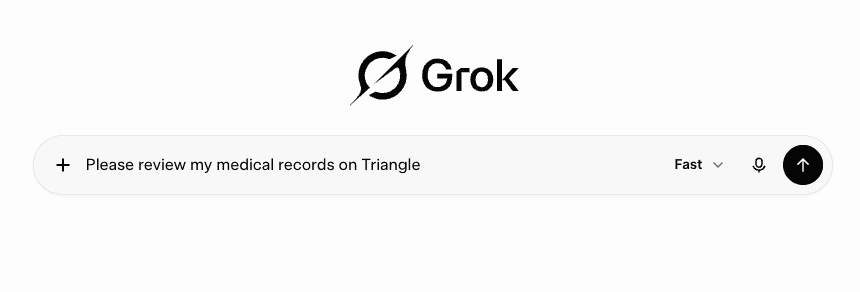
Once authorized, ask Grok to use Triangle tools to explore your health topics, notes, and records.
- Start a new chat in Grok (web or mobile).
- Ask Grok to list your health topics, read notes, or summarize medical records.
- Grok calls Triangle MCP tools when your question needs your health data.
- If Grok says it cannot access your notes and tells you to reconnect in settings, OAuth was never completed — see Troubleshooting.
- Manage or revoke the connection anytime from Settings → AI Services in the Triangle app.
What you can do after connecting
- Browse and organize health topics on your Triangle profile.
- Read and create notes attached to topics.
- Search notes across topics.
- List medical records and read summaries or extracted content (requires medical_records:read consent).
- Use data tools such as get_topics and get_topic_notes — inline ChatGPT-style widgets are not available in Grok.
- OAuth handled through the Grok connector flow — no manual Client ID or developer portal setup.
- Connector is account-scoped: set it up once and use it across Grok web and mobile.
- Manage connections anytime from Settings → AI Services in the Triangle app.