
All integrations
Claude Science
Use Claude Science on your machine with Triangle MCP tools for topics, notes, and medical records — with OAuth authorization through your Triangle account.
Official Claude Science documentationBefore you start
- A Triangle account with an active patient profile.
- Claude Science installed locally on your machine.
- An OAuth app you create in the Triangle developer portal (public PKCE client — Client ID only, no secret).
Connection fields
| Field | Value |
|---|---|
| MCP URL | https://app.trianglehealth.com/mcp |
| OAuth Server URL | https://app.trianglehealth.com |
| Client ID | Copy from your app detail page in the developer portal after you create the OAuth app |
| Scopes | Optional in the connector — leave blank. Permissions are granted on Triangle’s OAuth consent screen when you authorize. |
Setup steps
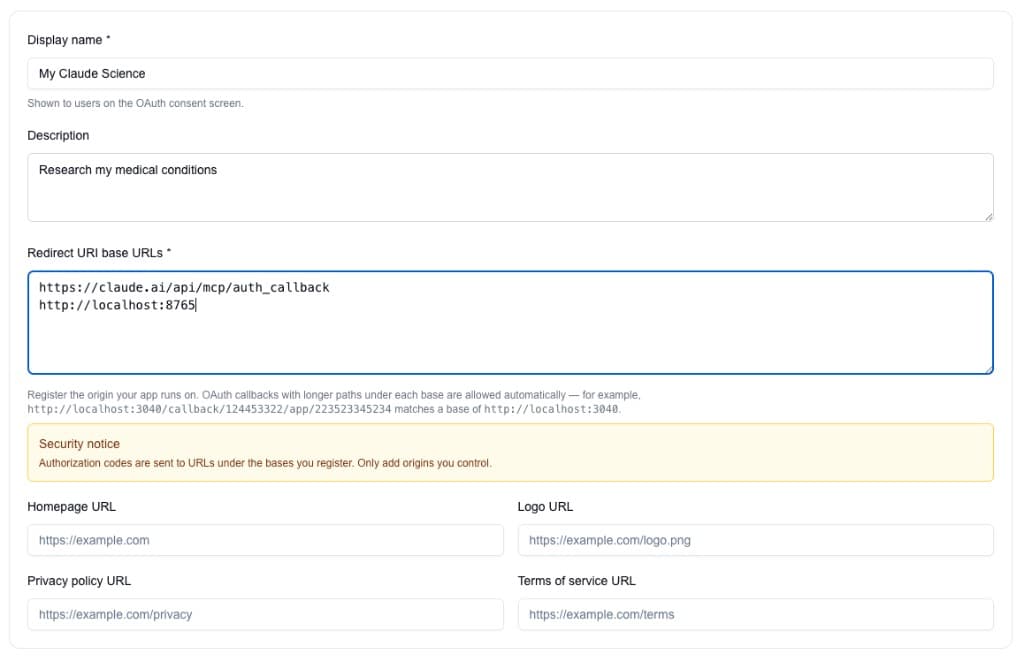
01.Create and configure your OAuth app
Register a public or confidential OAuth client in the Triangle developer portal. Confidential clients issue a one-time Client Secret for Claude web and future Connect with Triangle API apps.
- Open https://app.trianglehealth.com/developer/apps, click Create app, and enter a display name (for example, Claude Science).
- Add redirect URI bases: https://claude.ai/api/mcp/auth_callback and an http loopback base for your machine (for example http://localhost:8765).
- Save the app and copy the Client ID from the app detail page — you will paste it into Claude Science.
- If authorization fails with a redirect URI mismatch, add http://localhost:PORT for the port Claude Science uses.
02.Add Triangle in Claude Science
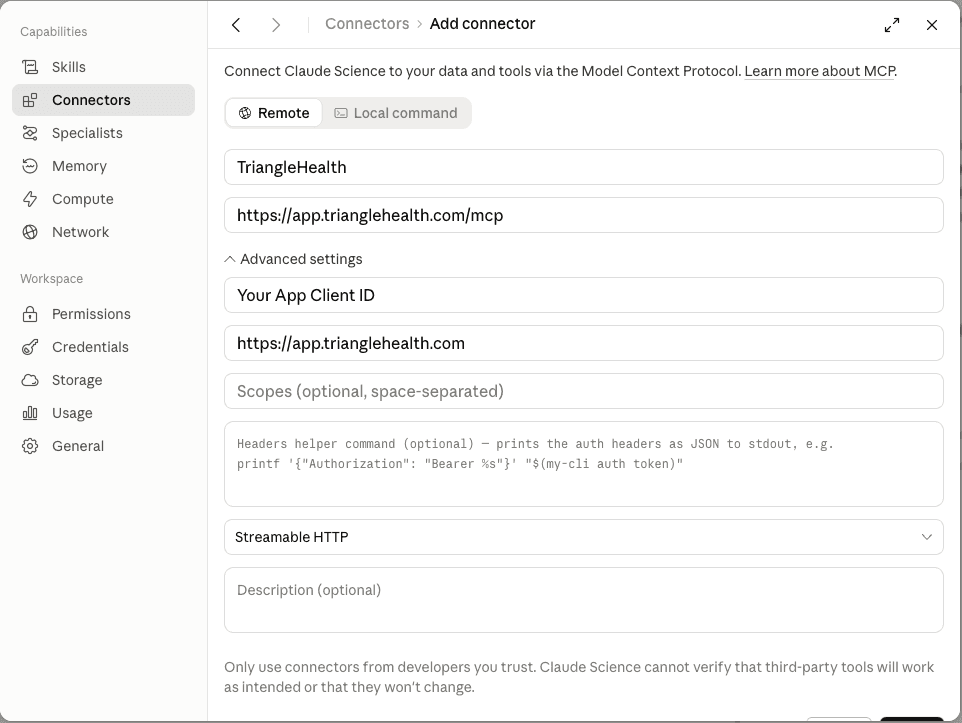
Add a remote MCP connector in Claude Science and paste the Client ID from your Triangle app.
- Open Claude Science → Connectors → Add connector (Remote tab).
- Copy the Client ID from your app’s detail page in the Triangle developer portal.
- Enter the MCP endpoint URL, OAuth server URL, and Client ID in the connector form, then save.
03.Authorize Triangle on first use
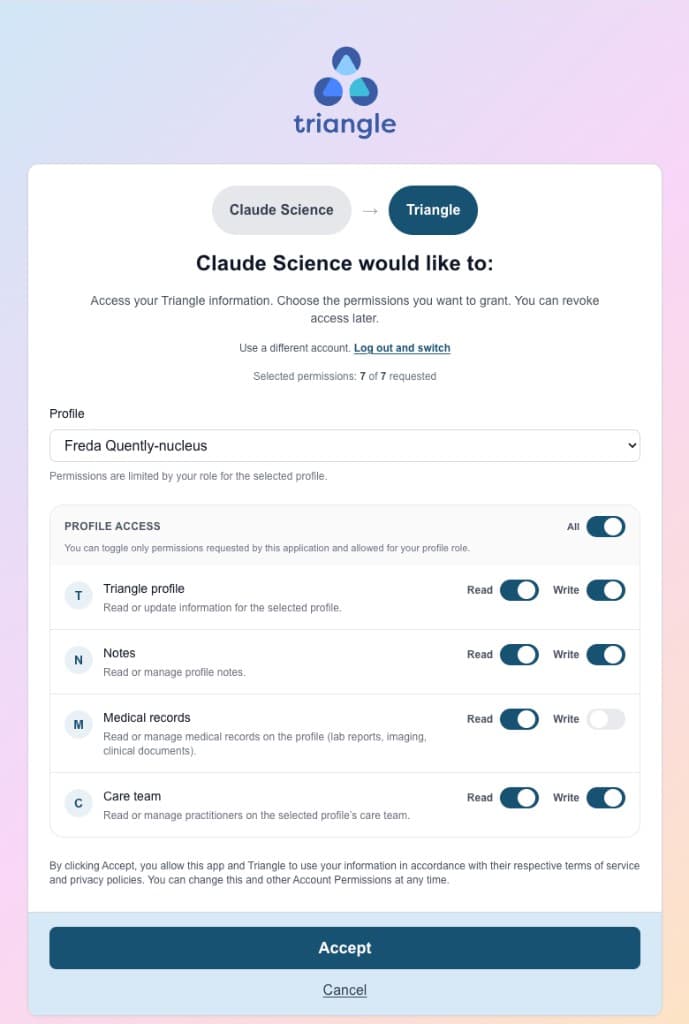
When Claude Science first calls a protected tool, your browser opens to sign in and approve permissions.
- Ask Claude Science to use a Triangle capability (for example, list your health topics).
- Sign in to Triangle when prompted and click Accept on the consent screen.
- New users complete the short setup flow (name, agreements, patient profile) before consent.
What you can do after connecting
- Browse and organize health topics on your Triangle profile.
- Read and create notes attached to topics.
- Search notes across topics.
- List medical records and read summaries or extracted content (requires medical_records:read consent).
- Reuse the same developer portal OAuth app if you also use other PKCE-based MCP clients.
- Manage connections anytime from Settings → AI Services in the Triangle app.