
All integrations
Claude
Add Triangle as a custom MCP connector in Claude web settings. Claude registers with Triangle automatically via OAuth, then you connect and authorize through your Triangle account.
Official Claude documentationBefore you start
- A Triangle account with an active patient profile.
- Claude on the web at claude.ai (or the Claude desktop app with custom connectors).
- No Triangle developer portal app is needed — Claude registers itself with Triangle automatically via OAuth.
Connection fields
| Field | Value |
|---|---|
| MCP URL | https://app.trianglehealth.com/mcp |
| Authentication | OAuth |
| Client ID | Not required — Claude handles OAuth registration automatically |
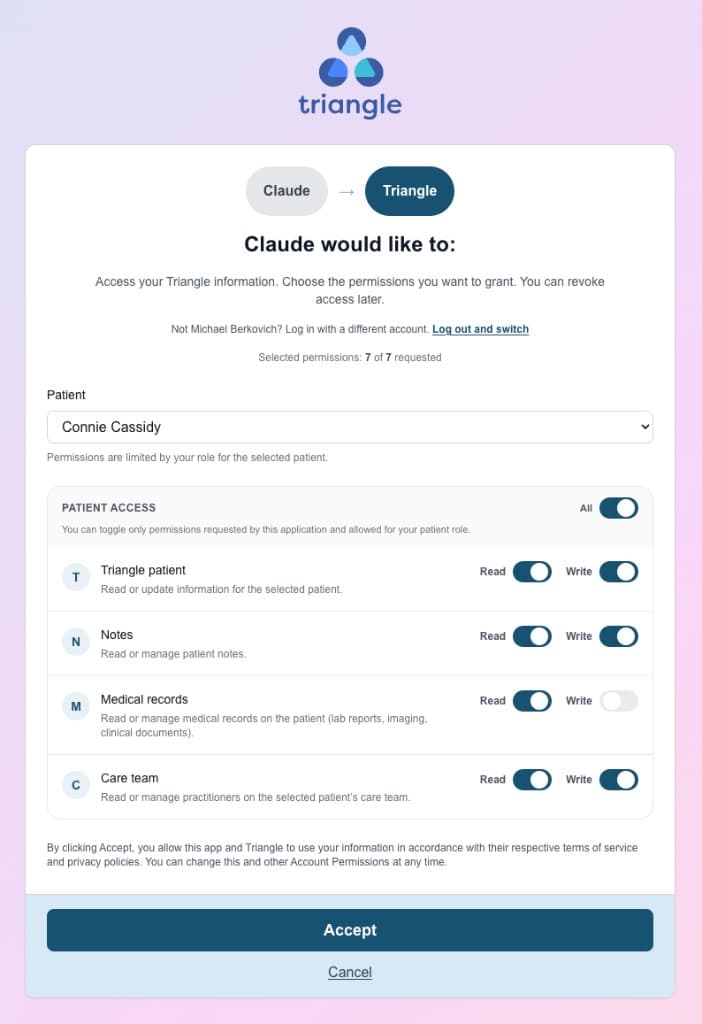
| Scopes | Not configured in the connector — permissions are granted on Triangle’s OAuth consent screen when you authorize. |
Setup steps
01.Add Triangle in Claude
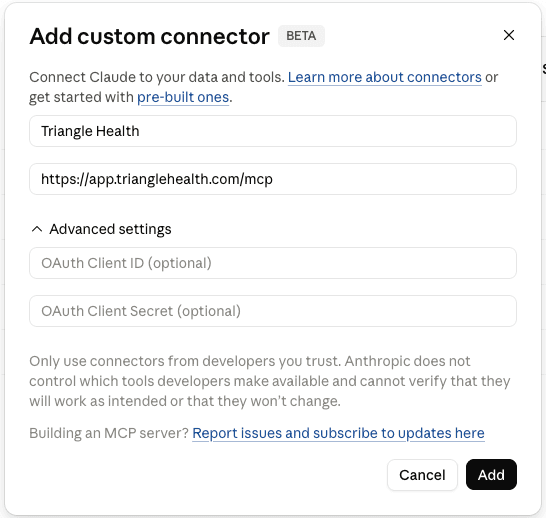
Add a custom remote MCP connector in Claude. You only need the connector name and MCP server URL — leave Advanced settings blank so Claude registers via OAuth automatically.
- Open Claude → Settings → Connectors → Add → Add custom connector.
- Enter a name (for example, Triangle Health) and the MCP server URL: https://app.trianglehealth.com/mcp
- Leave Advanced settings empty — Claude uses dynamic client registration with Triangle.
- Click Add to save the connector.
02.Connect and authorize Triangle
After adding the connector, Claude opens the Triangle connector page. Click Connect to sign in and approve permissions on Triangle’s consent screen.
- Open Claude → Settings → Connectors and select Triangle Health.
- Click Connect on the connector page.
- Sign in to Triangle when prompted and review permissions on the consent screen.
- Click Accept to grant access. New users complete the short setup flow (name, agreements, patient profile) before consent.
03.Talk to Claude with Triangle
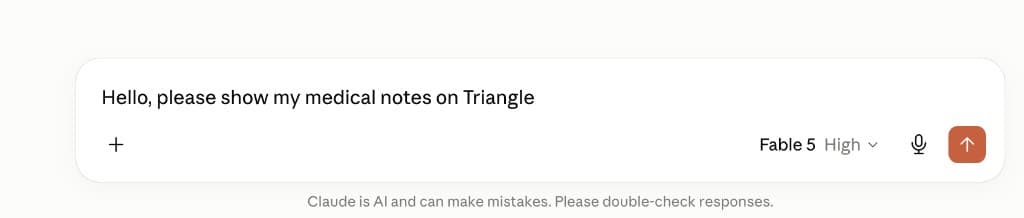
Once authorized, ask Claude to use Triangle tools to explore your health topics, notes, and records.
- Start a new chat in Claude.
- Ask Claude to list your health topics, read notes, or summarize medical records.
- Claude calls Triangle MCP tools when your question needs your health data.
- Manage or revoke the connection anytime from Settings → AI Services in the Triangle app.
What you can do after connecting
- Browse and organize health topics on your Triangle profile.
- Read and create notes attached to topics.
- Search notes across topics.
- List medical records and read summaries or extracted content (requires medical_records:read consent).
- Widget-oriented tools (`list_topics`, `list_topic_notes`) are available only to ChatGPT — use `get_topics` and `get_topic_notes` in Claude for the same data.
- OAuth handled end-to-end by Claude via dynamic client registration — no manual Client ID or developer portal setup.
- Works in Claude web and the Claude desktop app with custom connectors.
- Manage connections anytime from Settings → AI Services in the Triangle app.