 Triangle
LM Studio
Connect Triangle as a remote MCP server in LM Studio, authorize through your Triangle account, and let a local model work with the health data you approve.
Before you start
- A Triangle account with an active patient profile.
- LM Studio 0.3.17 or later. Remote MCP and OAuth support must be available in your installed version.
- A local model that supports tool use. Smaller models may not reliably choose or complete MCP tool calls.
- A confidential OAuth app created in the Triangle developer portal, with LM Studio’s callback URL registered.
Connection details
What to enter if LM Studio asks for them.
- MCP server URL
- https://app.trianglehealth.com/mcp
- Authentication
- OAuth
- OAuth callback URL
- http://127.0.0.1:33389/mcp-oauth-callback
- Client ID
- Copy from your confidential app in the Triangle developer portal
- Client Secret
- Copy the one-time secret when you create the confidential app
- Scopes
- Not configured in LM Studio — permissions are granted on Triangle’s OAuth consent screen when you authorize.
Set it up
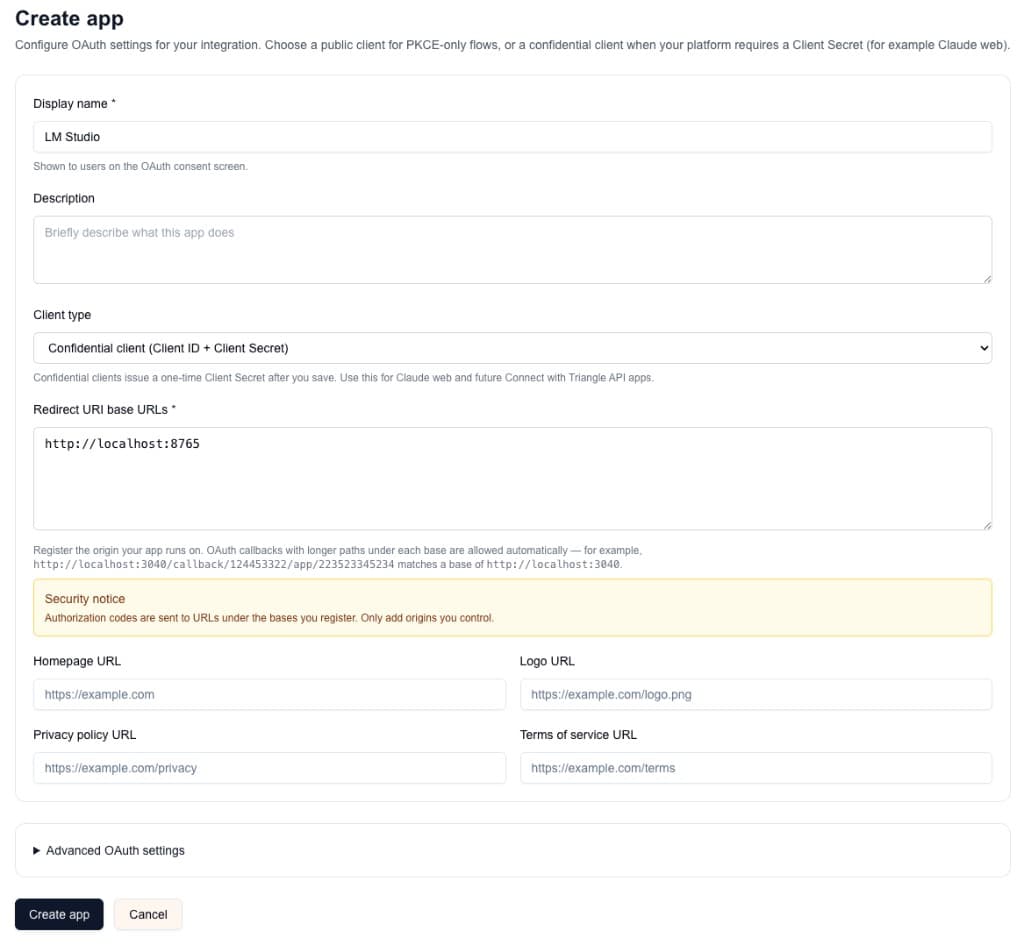
Create OAuth credentials for LM Studio
LM Studio requires your own OAuth credentials for Triangle. Create a confidential app and register LM Studio’s local callback before editing mcp.json.
- Open https://app.trianglehealth.com/developer/apps and create a confidential OAuth app named LM Studio.
- Add http://127.0.0.1:33389/mcp-oauth-callback as a redirect URI base.
- Copy the Client ID and the one-time Client Secret. Store the secret securely because Triangle will not show it again.
Create OAuth credentials for LM Studio Open LM Studio’s MCP configuration
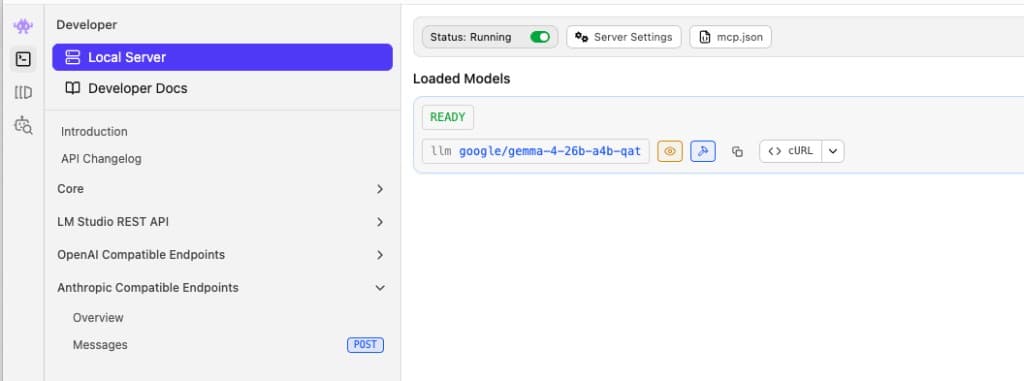
LM Studio manages MCP servers in mcp.json. Open the editor from Developer → Local Server.
- Open LM Studio and select Developer in the left navigation.
- Choose Local Server.
- Click mcp.json at the top of the Local Server pane to open the Edit mcp.json interface.
- Keep any existing server entries and add Triangle inside the mcpServers object.
Open LM Studio’s MCP configuration Add the Triangle remote MCP server
Add Triangle with its HTTPS MCP URL and the OAuth credentials from your confidential Triangle app, then save the file.
- Replace YOUR_CLIENT_ID and YOUR_CLIENT_SECRET with the credentials from the Triangle developer portal.
- Paste the Triangle entry into mcp.json and save your changes. Do not add a custom Authorization header.
- Do not replace other MCP server entries already in the file.
mcp.json { "mcpServers": { "triangle-health": { "url": "https://app.trianglehealth.com/mcp", "auth": { "CLIENT_ID": "YOUR_CLIENT_ID", "CLIENT_SECRET": "YOUR_CLIENT_SECRET" } } } }Configure the MCP server
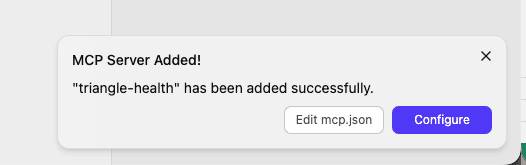
After LM Studio detects the new triangle-health server, finish adding it when prompted.
- Wait for the “MCP Server Added!” confirmation.
- Click Configure MCP.
Configure the MCP server Authenticate with Triangle
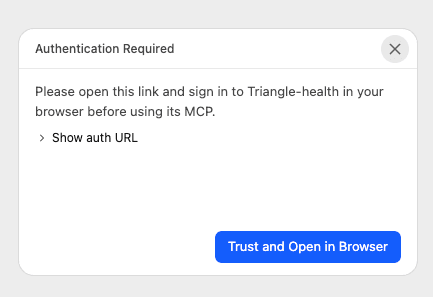
Enable triangle-health and complete LM Studio’s authentication prompt. LM Studio opens Triangle in your browser for sign-in and consent.
- Turn on the mcp/triangle-health toggle if it is not already on.
- Click Authenticate (or Trust and Open in Browser) when LM Studio asks you to sign in.
- Sign in to Triangle in the browser window if prompted.
- Review permissions on the consent screen, then click Accept.
- When the browser shows Authentication Successful, return to LM Studio.
- You can revoke access anytime from https://app.trianglehealth.com → Settings → AI Services.
Authenticate with Triangle Approve permissions on Triangle
On Triangle’s consent screen, choose the patient and permissions LM Studio may use.
- Confirm the correct patient is selected.
- Grant the permissions you want LM Studio to use (read and write as needed).
- Click Accept to finish authorization.
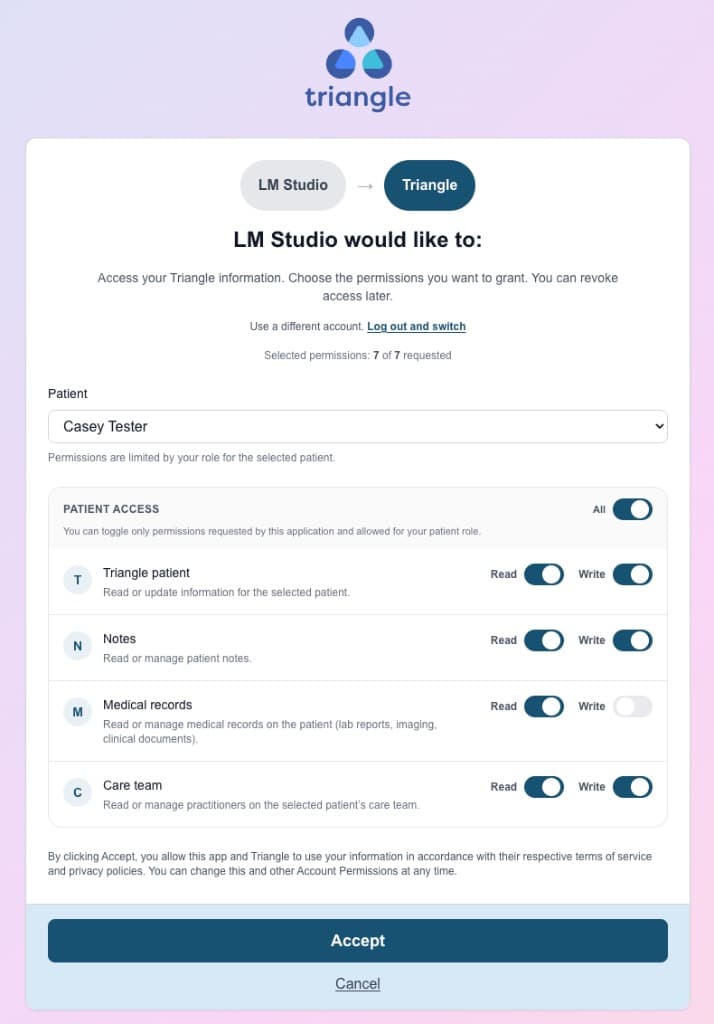
Approve permissions on Triangle Confirm Triangle tools are loaded
After authorization, LM Studio lists the Triangle MCP tools for the enabled server.
- Return to LM Studio after Authentication Successful appears in the browser.
- Open mcp/triangle-health and confirm Triangle tools are listed and enabled.
- Leave tools set to Ask if you want LM Studio to confirm each tool call.
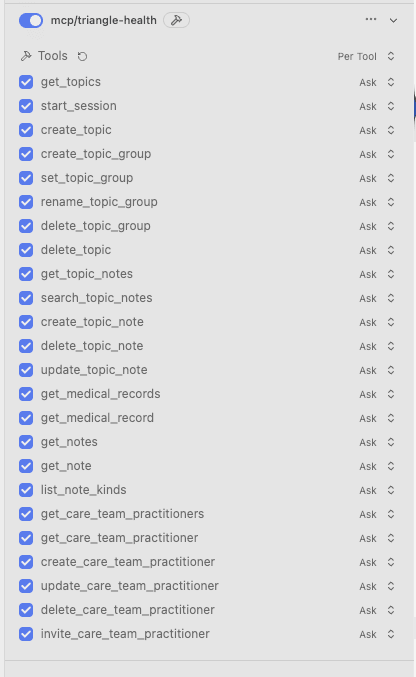
Confirm Triangle tools are loaded Load a model and use Triangle tools
Start a chat with a tool-capable local model, keep triangle-health enabled, and ask it to use your health data.
- Load a model with tool-use support and enough context for the Triangle tool definitions.
- Confirm the triangle-health chip is active in the chat composer.
- Try: “Hi, please review my health notes on Triangle.” Approve tool calls when LM Studio asks.
- Review tool inputs before allowing write actions such as creating a note.

Load a model and use Triangle tools
What you can do
- Use a local model to browse and organize health topics from your Triangle profile.
- Read, search, and create notes when the corresponding permissions are approved.
- List medical records and read available summaries or extracted content with medical_records:read consent.
- Keep model inference local while Triangle handles authenticated health-data tool calls over HTTPS.
- Manage or revoke the LM Studio connection from Settings → AI Services in Triangle.
Troubleshooting
LM Studio does not show Triangle tools
Confirm you are using LM Studio 0.3.17 or later, the JSON is valid, and the Triangle entry is inside mcpServers. Save mcp.json again, click Configure MCP if prompted, then verify mcp/triangle-health is enabled in Developer.
The browser does not open for authorization
Confirm the auth object contains the Client ID and Client Secret from your confidential Triangle app. Verify http://127.0.0.1:33389/mcp-oauth-callback is registered as a redirect URI base, then click Authenticate or Restart for the MCP server in LM Studio.
OAuth configuration required or Dynamic Client Registration is not supported
LM Studio needs explicit OAuth credentials for Triangle. Create a confidential app in the Triangle developer portal, add http://127.0.0.1:33389/mcp-oauth-callback as a redirect URI base, and add its CLIENT_ID and CLIENT_SECRET under auth in the triangle-health mcp.json entry. Save the file and continue from Configure MCP.
The model ignores tools or produces a poor tool call
Use a model with reliable tool-use support, keep the triangle-health chip enabled for the current chat, and ask explicitly for Triangle to be used. A larger context window can help because MCP tool definitions consume context.
A Triangle tool returns an authorization error
The tool may require a permission you did not grant. Disconnect LM Studio from Triangle Settings → AI Services, reconnect it, and approve the needed permission on the consent screen.
How do I revoke LM Studio access?
Go to Settings → AI Services in Triangle and click Disconnect next to the LM Studio connection. Triangle revokes its tokens immediately.